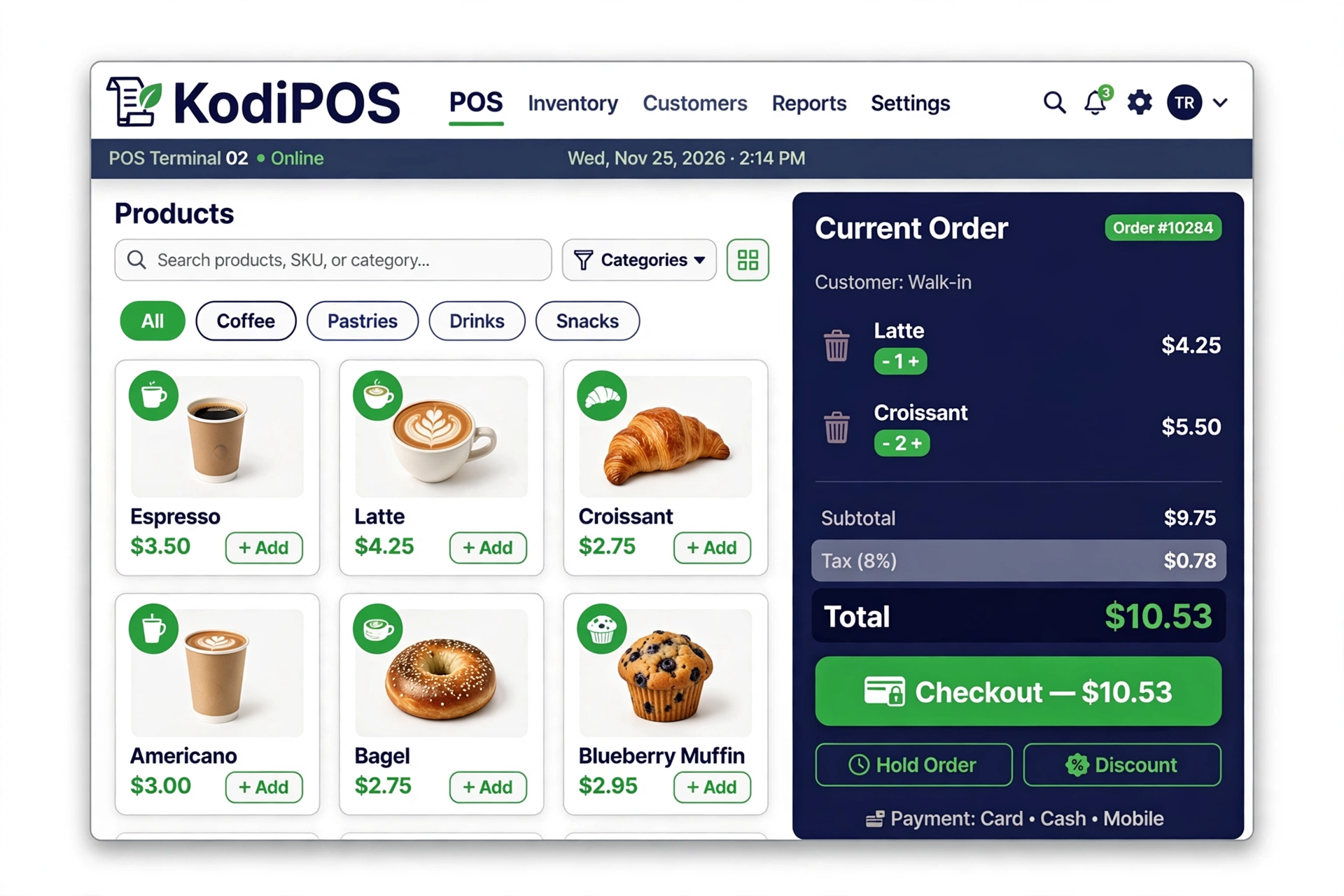
POS software for small shops — POS stands for “point of sale”, the place where a customer pays — turns a phone, tablet or computer into a till that also tracks what you sold, what is left in stock and what your day actually earned. It replaces the cash register and the notebook with one system: tap the items, take the payment, print or send the receipt, and the sale is recorded and your stock is updated automatically. This guide explains the difference from a cash register, the features that matter for a small shop, and the mistakes to avoid when choosing.
Cash register vs POS: the real difference
A cash register does one job: it adds up a sale and holds the cash. At the end of the day it tells you a total — if the tape was read correctly and nothing was keyed in wrong.
A POS system does the sale and everything around it:
| Question at the end of the day | Cash register | POS software |
|---|---|---|
| How much did we sell today? | One total, if the tape is right | Exact total, by hour, by cashier |
| What did we sell? | You don’t know | Every item, every quantity |
| How many blue shirts are left? | Count the shelf | Shown instantly |
| Did anything go missing? | Impossible to tell | Stock vs sales are compared |
| What should I reorder? | Your memory | A list of what is running low |
| Can I see sales when I’m not in the shop? | No | Yes, from your phone |
For a very small operation — one person, a handful of products, all cash — a register or even a notebook can still work. The moment you have staff, more than a few dozen products, or stock you cannot count from memory, the notebook starts costing you money in ways that are hard to see: items sold but never recorded, stock-outs on your best sellers, and no way to check a cashier’s day.
The features that actually matter
A fast, simple checkout. Selling must be quicker than writing in a notebook, or staff will resist the system. Products should be findable by name, by category, or by barcode scan — the camera on a phone or tablet can serve as the scanner for most small shops.
Inventory that updates itself. Every sale reduces stock; every delivery you receive adds it. When an item drops below the level you set, the system flags it for reordering. This is the feature that pays for the software: the clothing shop that never runs out of its best-selling sizes, the pharmacy that notices a fast-moving item before the shelf is empty.
Receipts customers trust. A printed or digital receipt with your shop’s name, the items, the prices and the total. Digital receipts sent by message cost nothing and give the customer a record; they also quietly give you a customer list for later (with the customer’s agreement).
Works offline. Internet cuts happen. A proper POS keeps selling during an outage — sales are stored on the device and synchronised when the connection returns. If a vendor’s system stops working when the internet stops, it will stop working in your shop. Test this during the trial: turn off the Wi-Fi and make a sale.
End-of-day reports you can read. Total sales, cash vs card vs mobile money, what each cashier sold, best and worst sellers. Five minutes with the day’s report tells you more about your shop than a month of impressions.
Several payment types. Cash, card, and the mobile money or transfer methods your customers actually use — recorded separately, so the end-of-day cash count reconciles with the report instead of producing the usual mystery difference.
POS and shop management: do you need both?
A POS handles the counter: selling, payments, receipts, stock at the till. A broader shop management system adds the back office: supplier orders, expenses, customer accounts and credit, staff, and reporting across the whole business. Many small shops start with the POS and add management tools as they grow — or choose a pair of products designed to work together, so the sale at the till and the stock in the back room are always the same number.
The mistake to avoid is buying a big retail system designed for supermarket chains. Those systems assume IT staff, expensive terminals and training programmes. A small shop needs the opposite: software the owner can set up in an afternoon and a new cashier can learn in an hour.
Choosing: questions to ask before you pay
- What hardware does it need? The cheapest path is the phone or tablet you already own, plus an optional receipt printer. If the vendor requires their own expensive terminal, ask why.
- What is the real monthly cost? Watch for per-transaction percentages on top of the subscription, charges per extra cashier or device, and paid add-ons for basics like inventory.
- Can I import my products? Entering 300 products one by one is a weekend lost. You should be able to load them from a spreadsheet.
- What happens to my data if I stop paying? Your product list and sales history are yours. You should be able to export them.
- Is there a free trial with the full product? A demo video is not a trial. You want your products, your prices, your staff, in your shop, on a busy day.
Common mistakes
- Not counting opening stock. The system is only as true as its starting numbers. Do a full stock count the day you start, even if it takes an evening.
- Letting staff share one login. Individual logins take seconds and make end-of-day differences traceable to a person and a moment instead of an argument.
- Recording only some sales in the system. “Quick cash sales” outside the POS destroy the stock numbers, and within a month nobody trusts the system. Every sale goes through the till — that rule is the whole game.
Frequently asked questions
Do I need special equipment?
For most small shops, no. POS software runs on a phone, tablet or computer you already have. A barcode scanner and receipt printer are optional extras; the device’s camera can scan barcodes, and receipts can be sent digitally.
Does it work without internet?
It should. A well-built POS records sales offline and synchronises when the connection returns. Always test this during the trial by switching the internet off and completing a sale.
Can it handle cash and mobile money as well as cards?
Yes — a sale is recorded with its payment type (cash, card, mobile money, transfer), so your end-of-day totals are separated by method and the cash in the drawer can be checked against the cash sales recorded.
Is my sales data safe if my phone is lost?
With software that synchronises to an account, your products and sales history are stored beyond the device, so a lost phone is an inconvenience, not the loss of your records. Use individual staff logins and a screen lock on the device itself.
Start at the counter, keep the whole shop in view
Kodivanta’s KodiPOS handles the counter — fast sales, receipts, stock that updates itself, offline selling — for $19/month, and it pairs with KodiShop, the shop management system (also $19/month), when you want the back office covered too. Both start with a 14-day free trial, no card required to start: load your real products, make real sales for two weeks, and compare the end-of-day report with your notebook. The numbers will make the decision for you.